Admin Guides

Add Team members

Go to: My Team > Users > User Groups
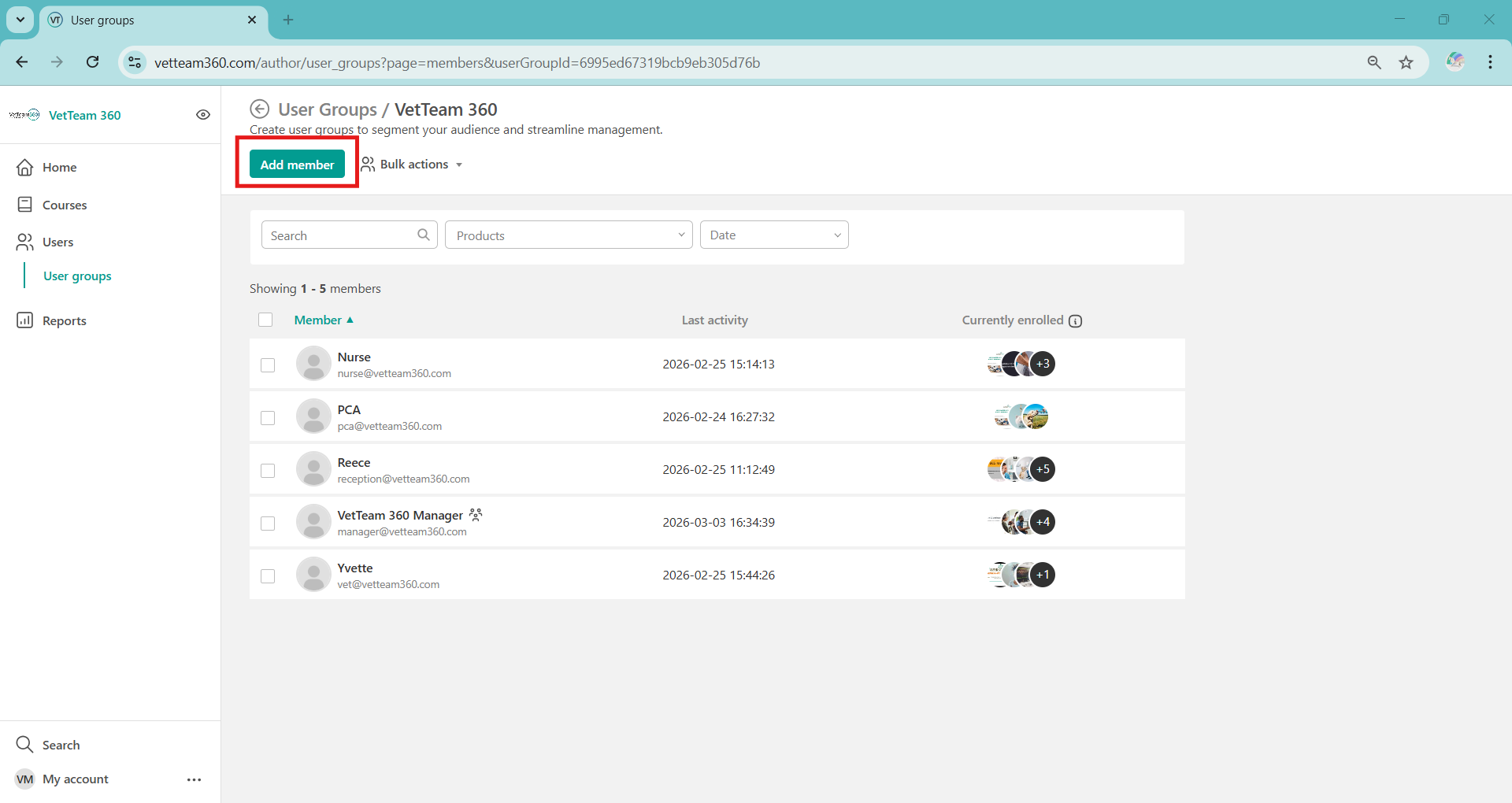
Click 'Add Member'.
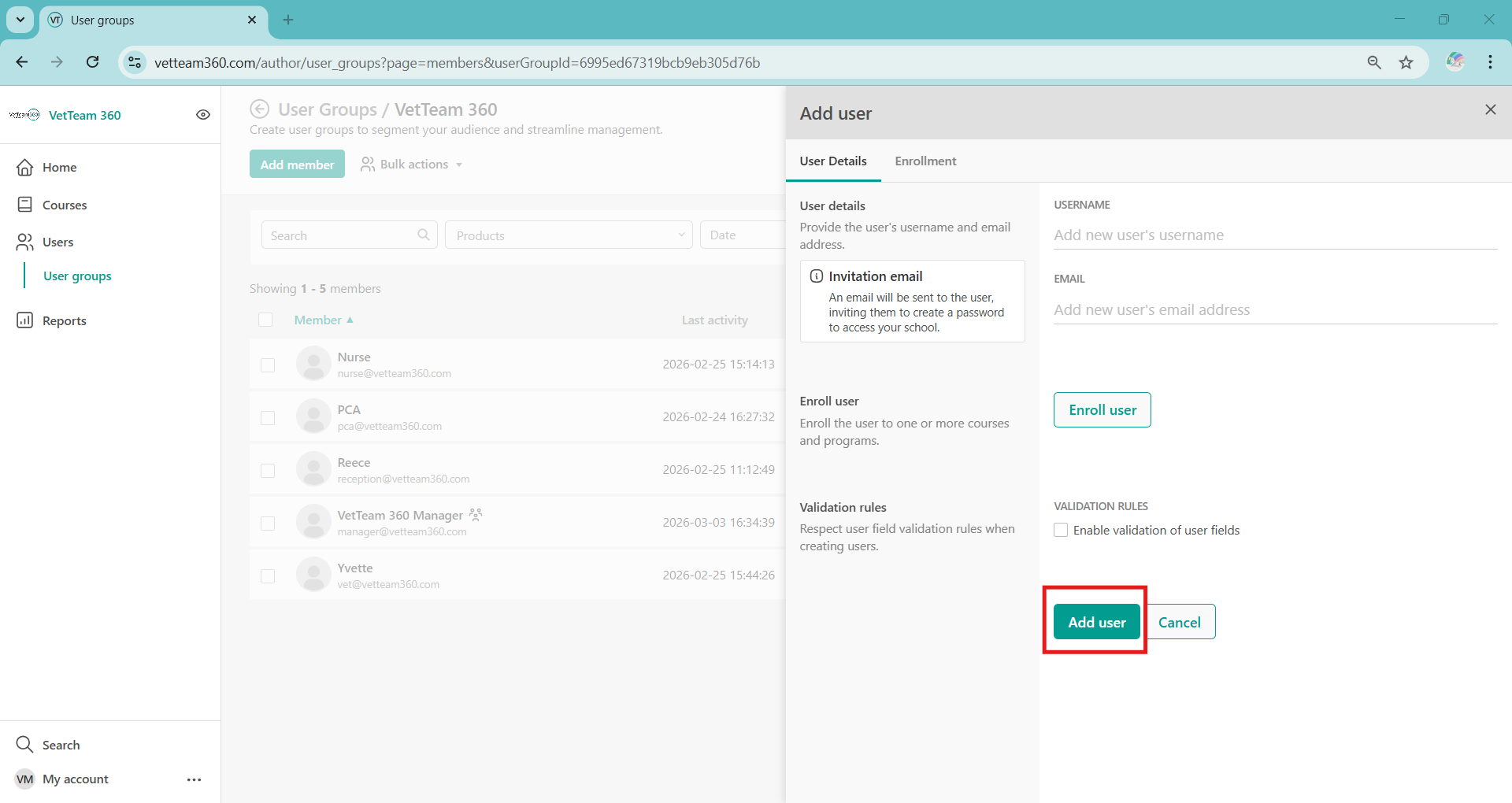
Enter your Team Member's Full Name and Email Address and click 'Add user'.

Note:
You do not need to enroll users onto anything. All users will automatically have access to the full Vet Team 360 catalogue and can self-enrol on courses or their choosing. 

An email will be sent to the Team Member to create their password and activate their account.

Bulk upload team members

Go to: My Team > Users > User Groups
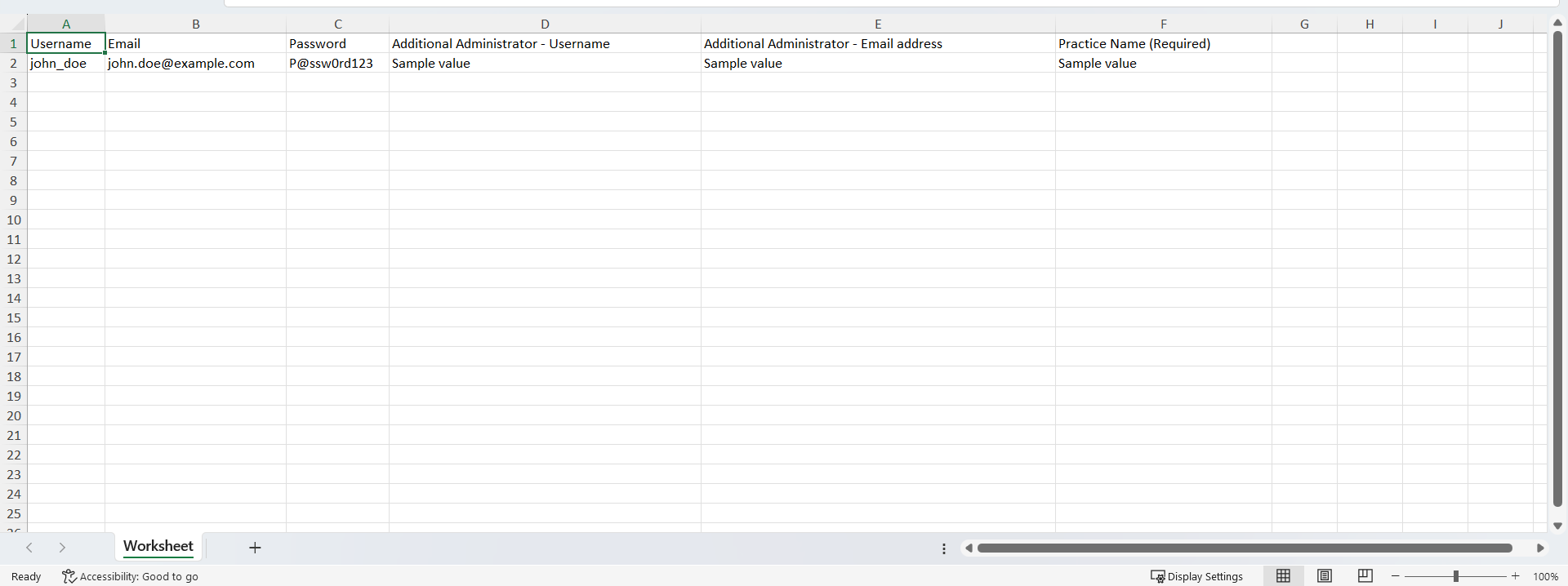
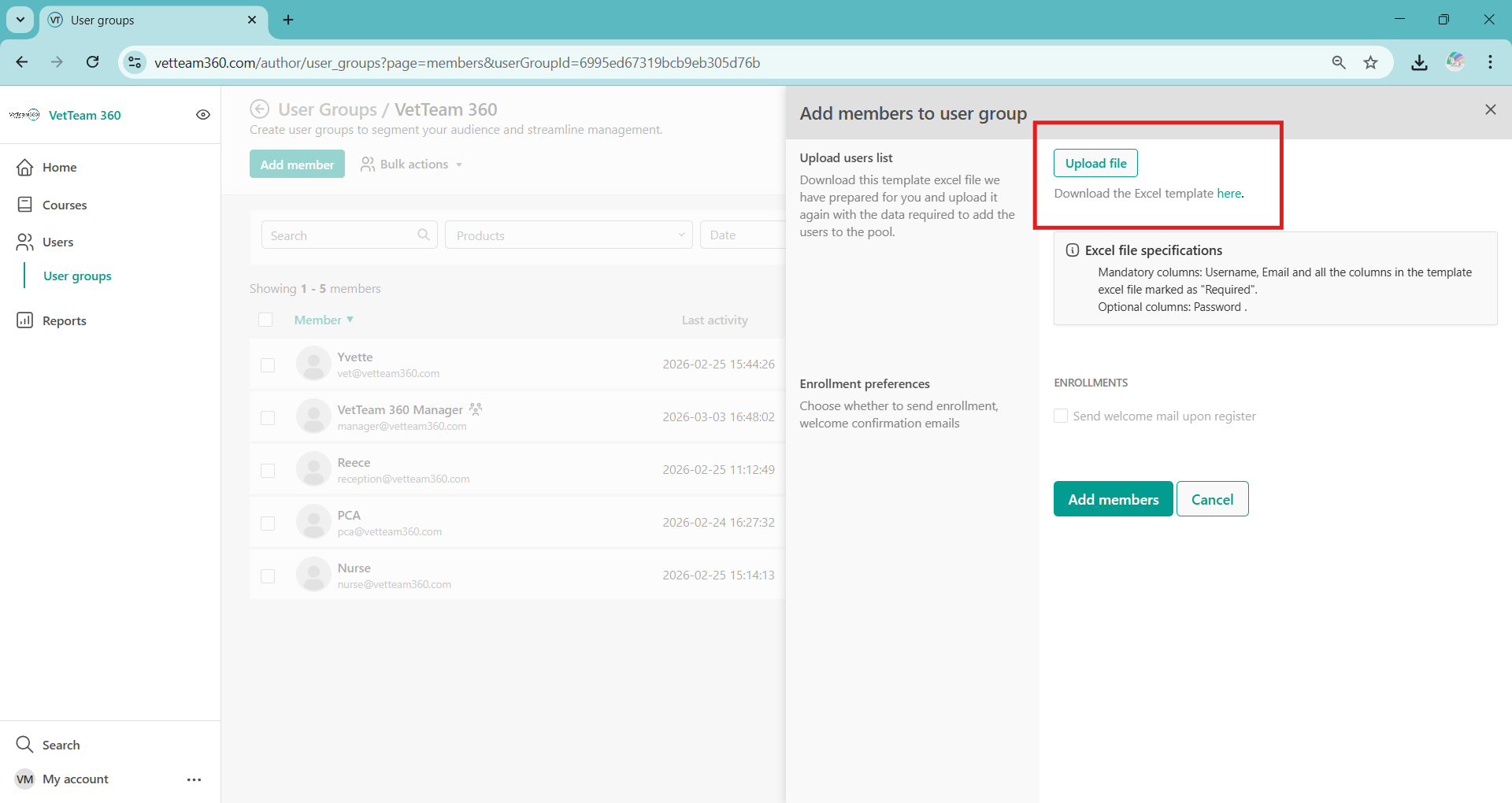
Click on Bulk actions, download the Excel template (see below), and fill in the user details in Excel to add users to this specific User Group or to add and enroll users. 
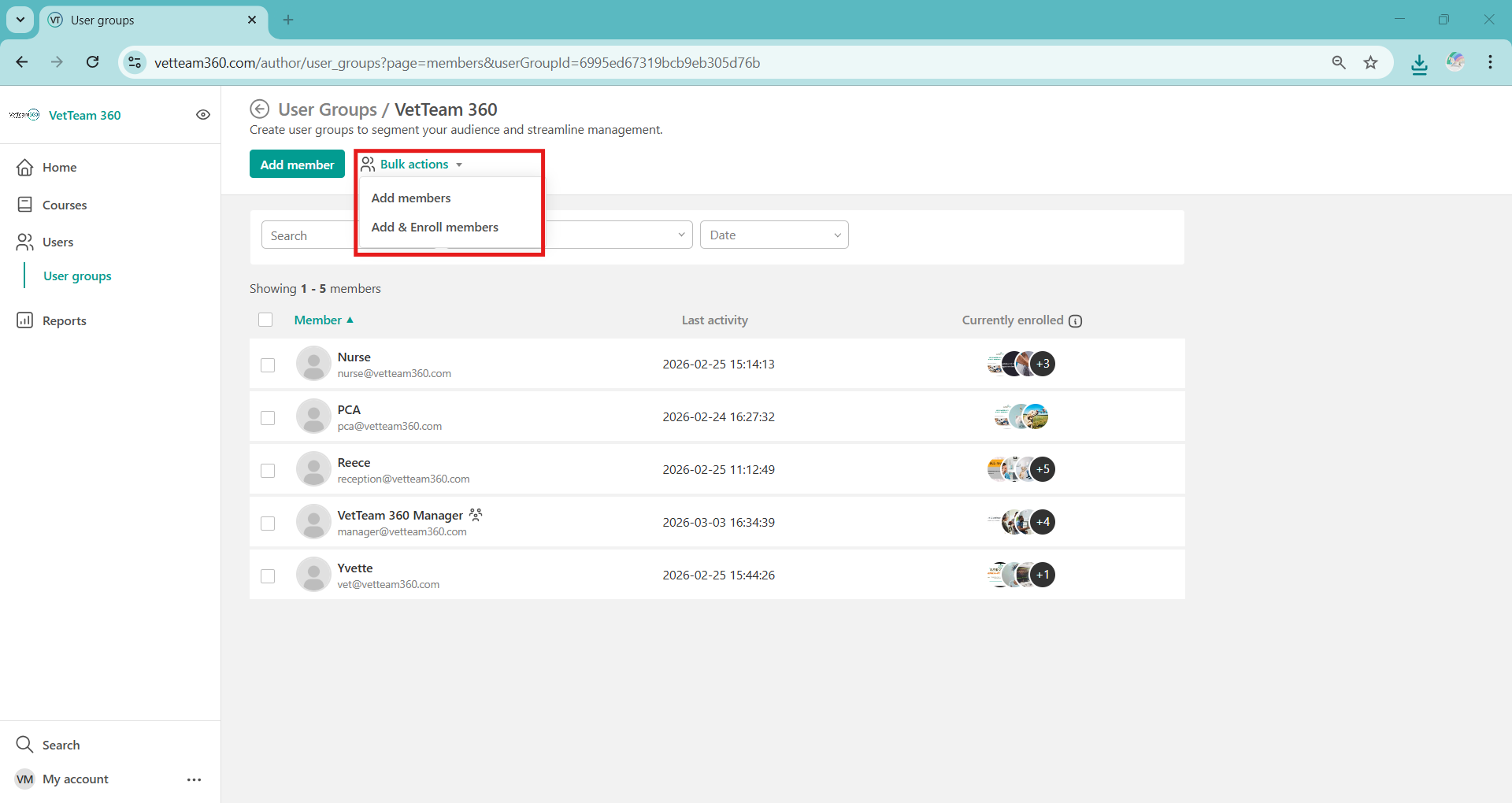
The file you will upload shouldn't be differentiated from the Excel template. Here are some tips to follow:

  1. Download the sample file (Excel template).
  2. Use this template and add the data in the respective default fields. Do not alter the fields or add additional ones. A username and email are required (for "username," you can add a name and surname).
  3. Clear Formatting: In the case of copy-paste, keep in mind to copy the cells without any formatting, and since you will be adding emails, make sure they are not added as links.

 Ctrl+Shift+V for Windows or Command+Shift+V for Mac would help to clear formatting when copy-pasting.
When the Excel file is ready, upload it to the respective field.

View learner engagement 

Go to: My Team > Users > User Groups
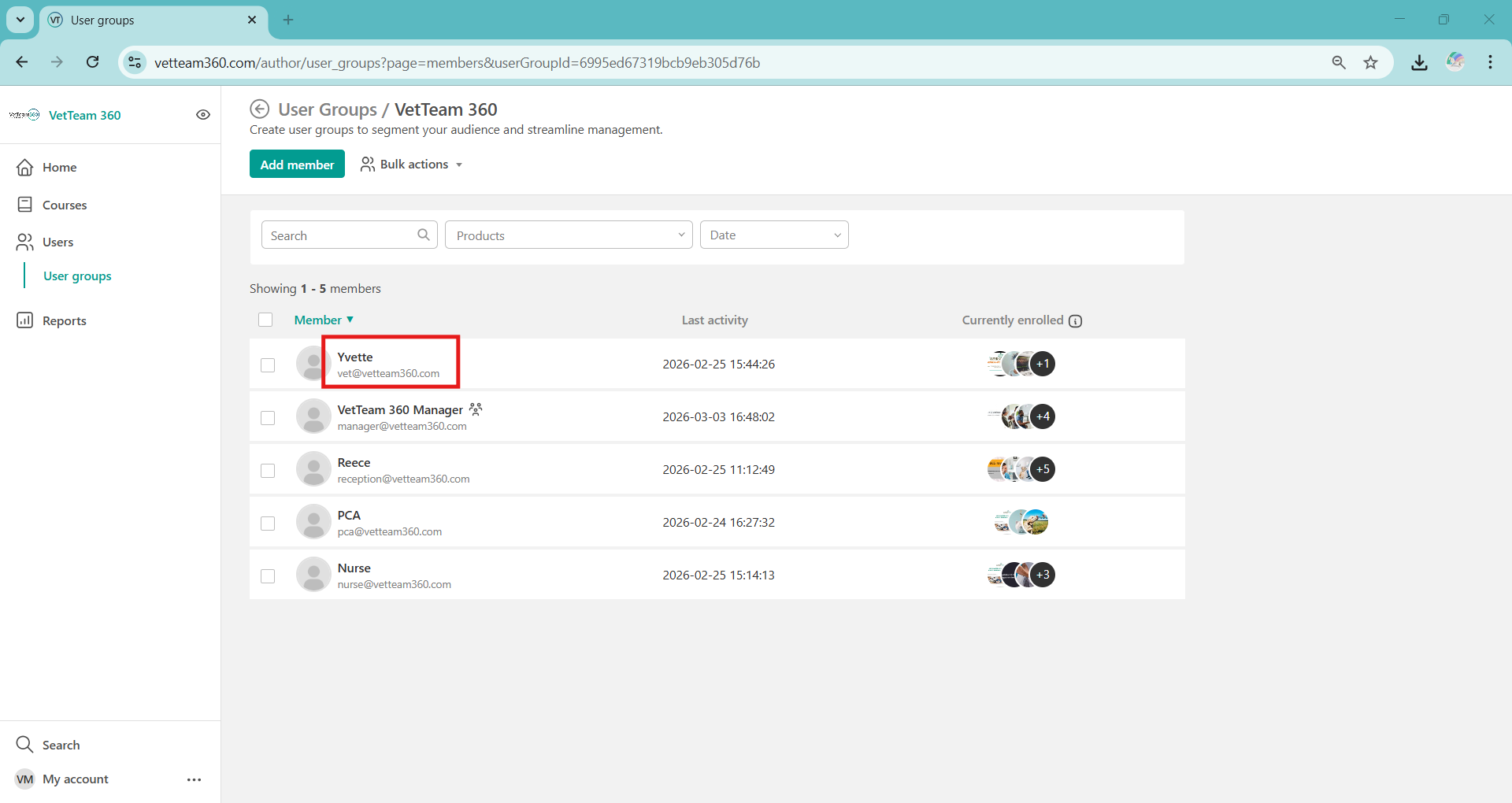
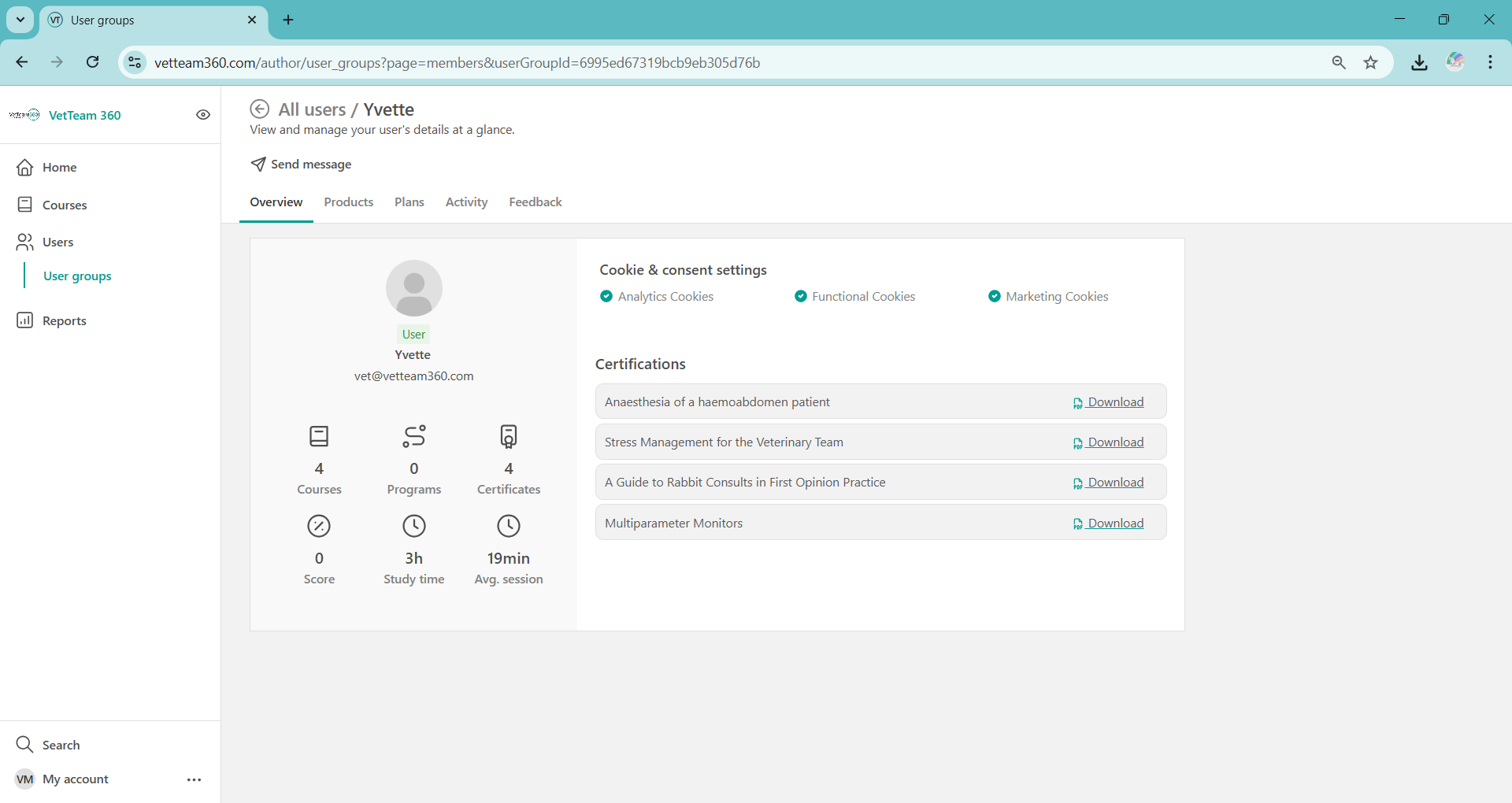
Click on the Team Member's name you wish to view.
Overview: Team Member participation and certificates at a glance.
Products
: Tracking information for all enrolled courses and webinars.
Plans
: Not applicable to Team Members.
Activity
: Timeline of Team Member interactions.
Feedback
: Not applicable to Team Members.

View team certificates

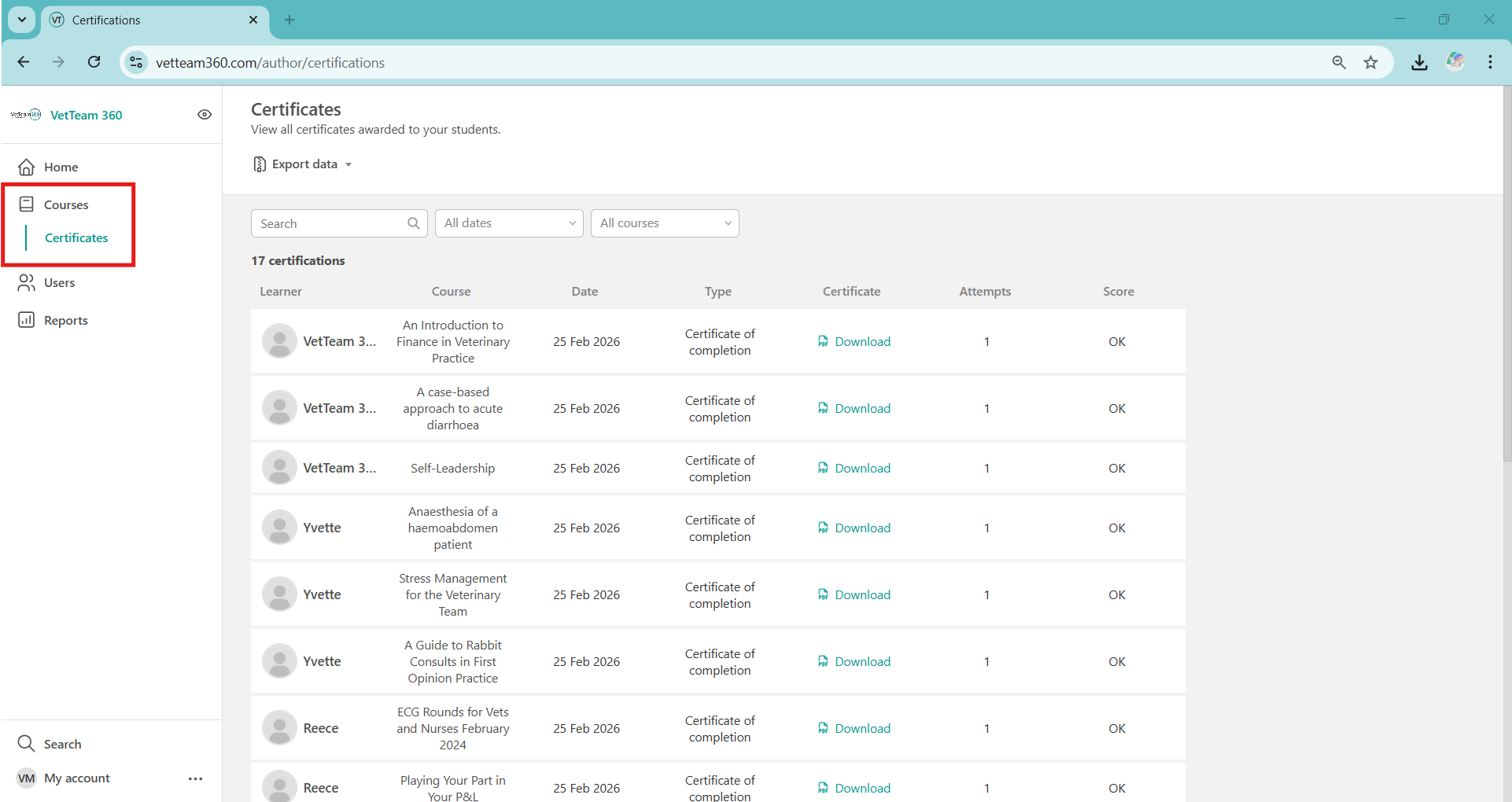
Click My Team > Courses > Certificates
Delete a team member

Go to: My Team > Users > User Groups
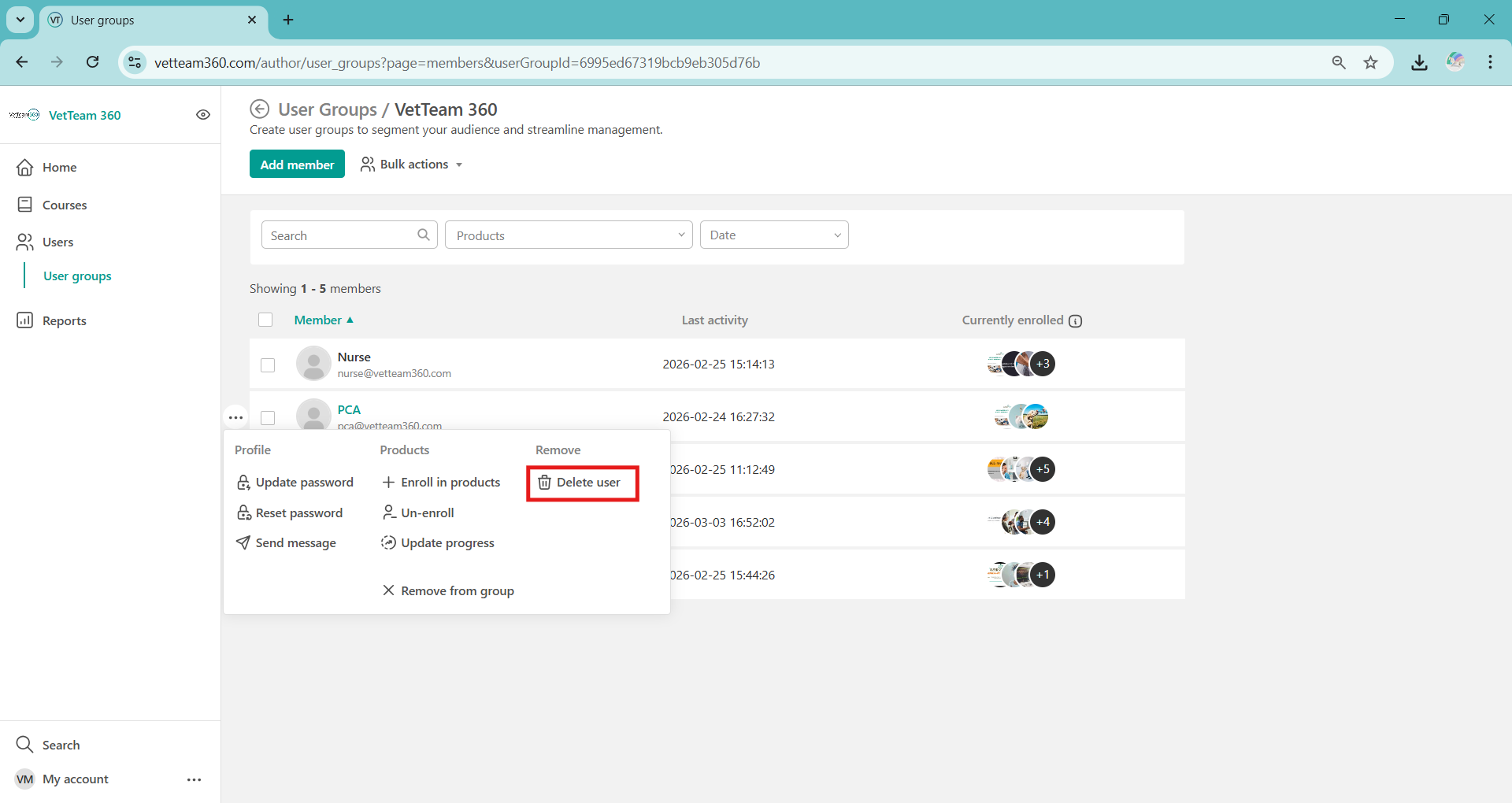
Hover over the Team Member you wish to delete and click the three dots that appear (...)
Click 'Delete User'

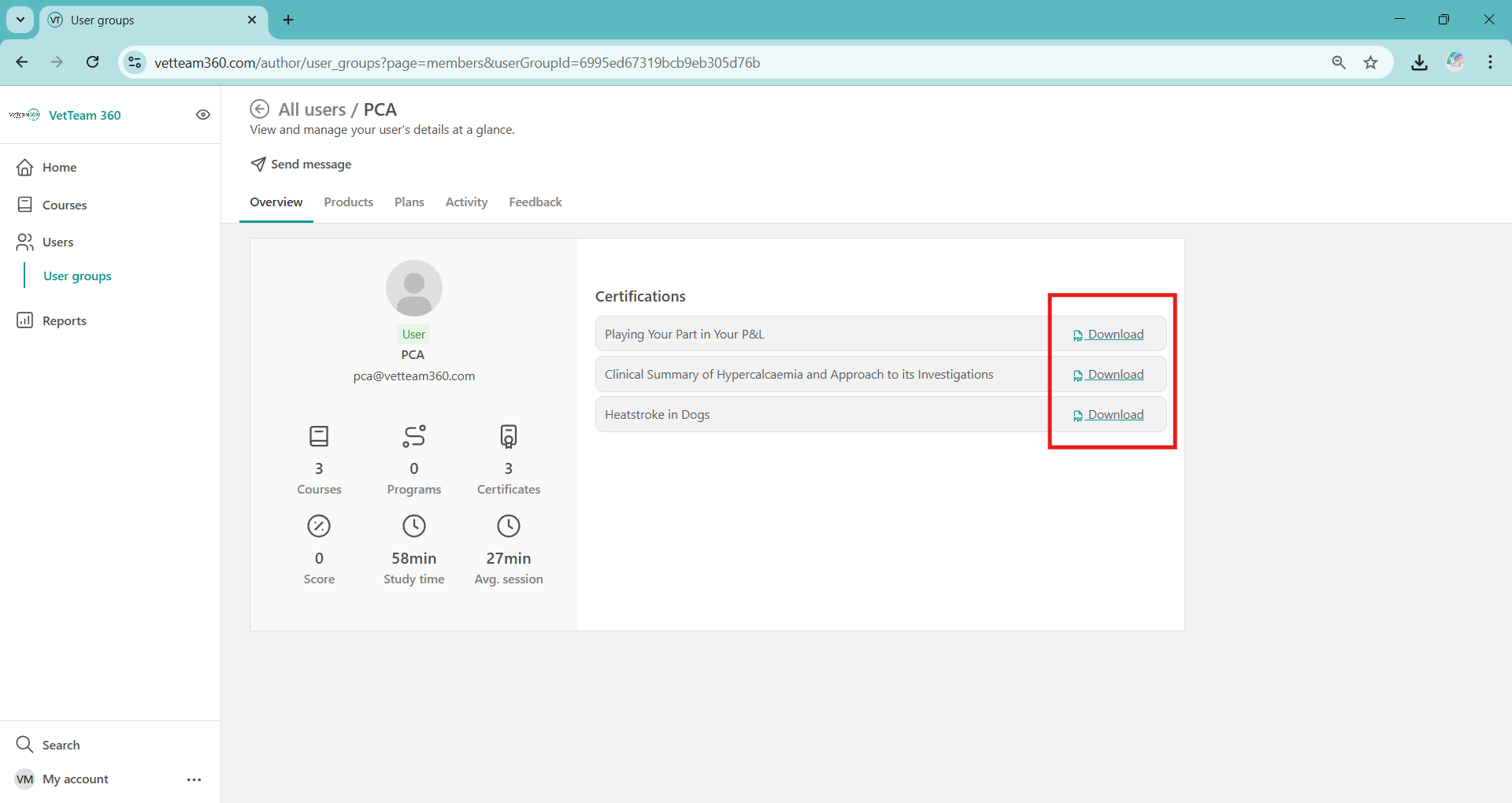
!!! Important: User accounts and data cannot be retrieved once deleted. We strongly recommend downloading all user completion certificates before deleting the account

Enrolling a team member onto a course

Go to: My Team > Users > User Groups
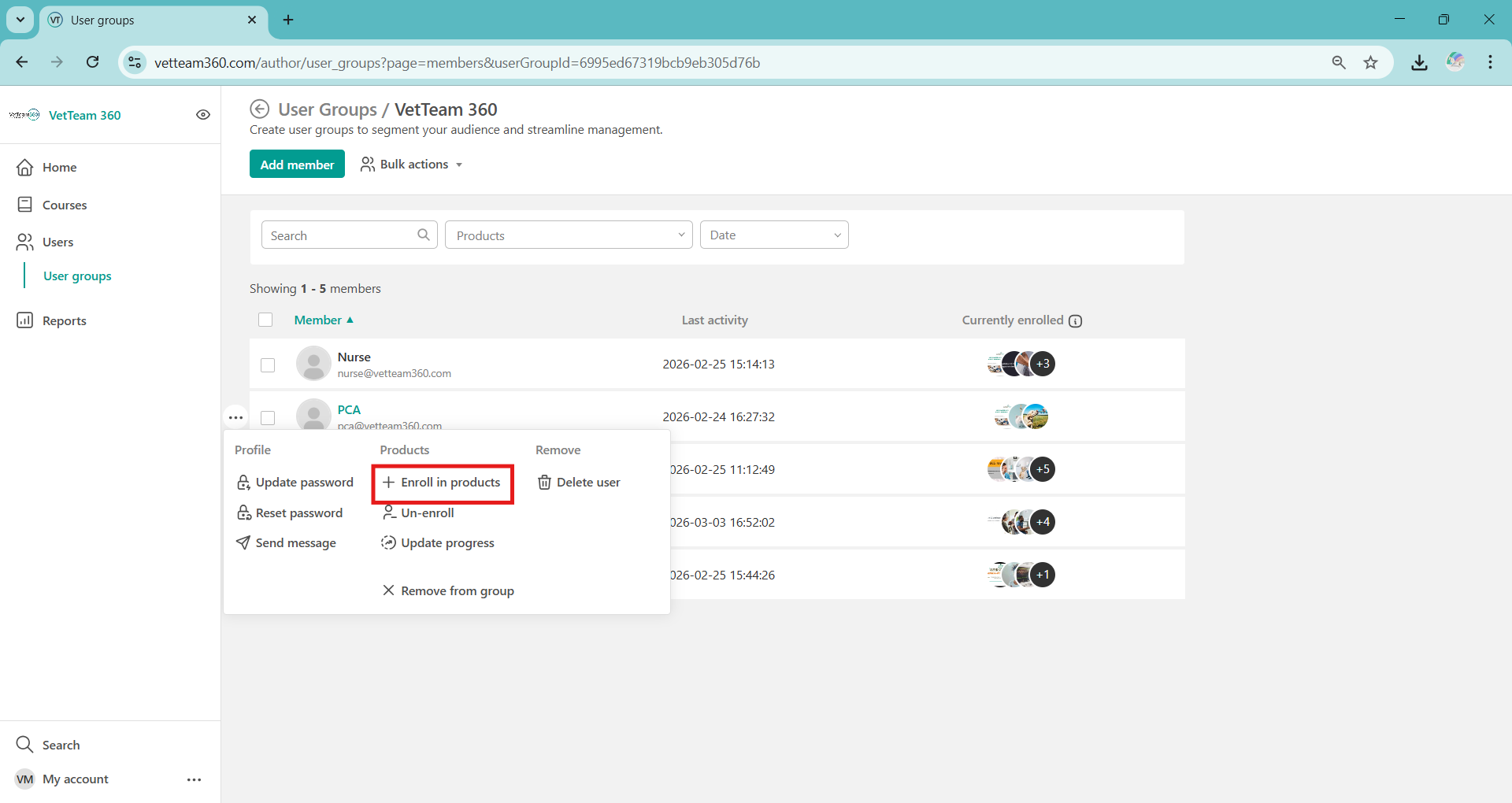
Hover over the Team Member you wish to enrol and click the three dots that appear (...)
Click 'Enrol in products'
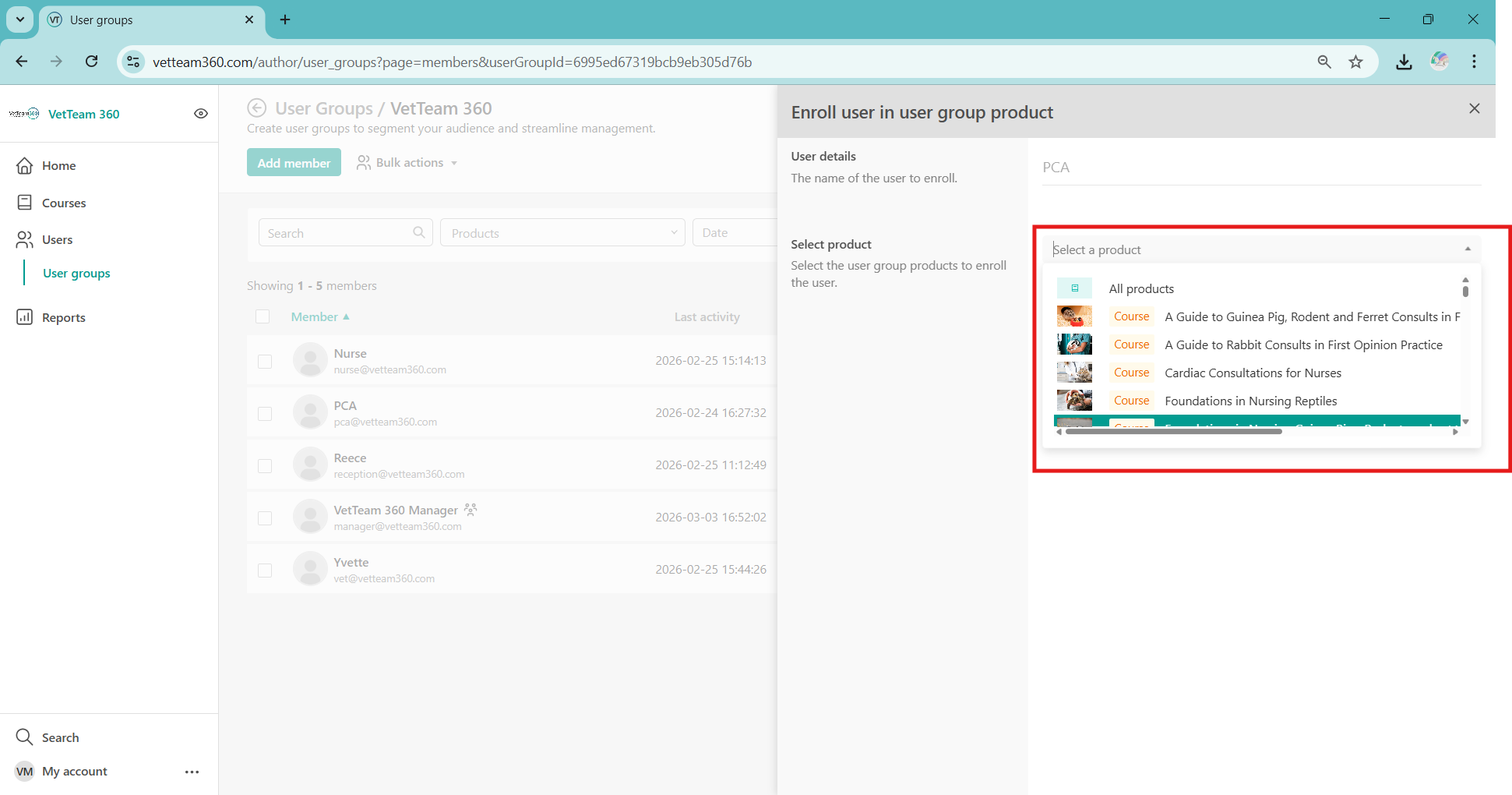
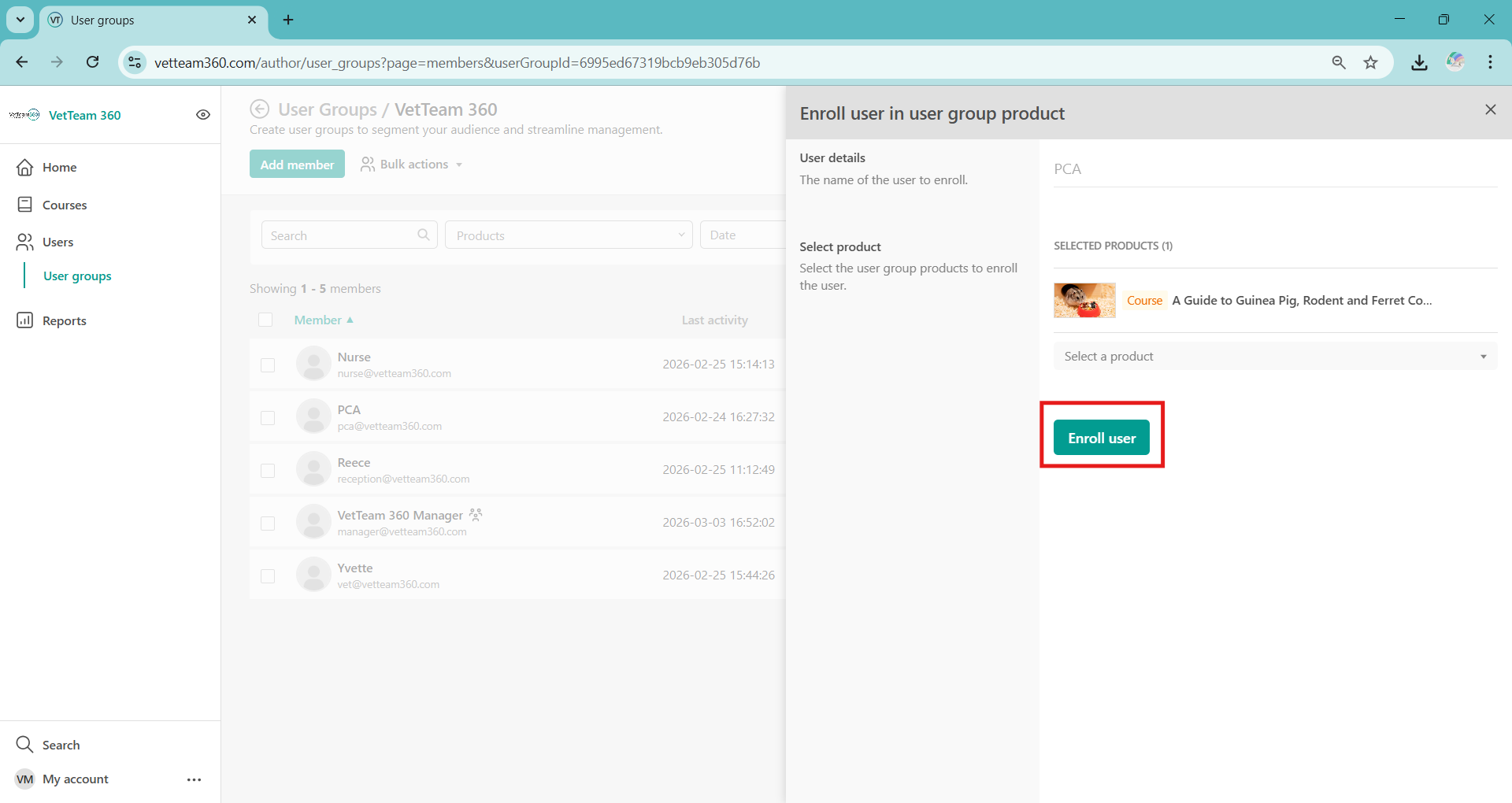
Select the course/s you wish to enrol the Team Member onto and click 'Enrol user'